Display & refresh rate
Make sure Windows is actually using your monitor's intended refresh rate.
Windows settings, GPU drivers, FPS, input latency and network optimization — explained simply and tested step by step.
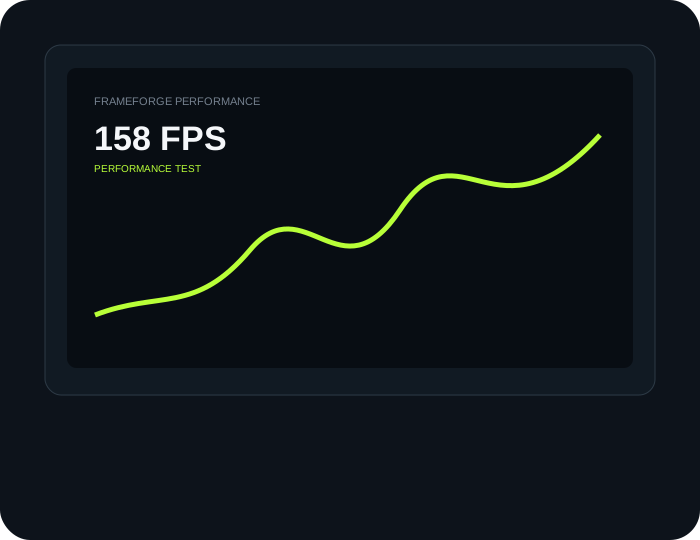
Get a quick browser-based profile of your PC, display and graphics environment, then receive a personalized checklist of what to check next.
CPU threads, browser-exposed memory, graphics renderer, display information and platform — followed by practical gaming checks. It never changes your Windows settings.
Build a game profile, diagnose FPS or network symptoms, track before/after benchmarks and generate a shareable PC fingerprint.
The Lab turns PCTweaker from a collection of guides into a practical troubleshooting workflow. Measurements stay in your browser where applicable.
Before changing advanced settings, get Windows, your display and your background apps under control.
Make sure Windows is actually using your monitor's intended refresh rate.
Review Windows gaming features and per-game graphics preferences.
Reduce unnecessary background work without blindly disabling Windows services.
Check GPU drivers, CPU/GPU temperatures and clocks before troubleshooting FPS.
Don't apply twenty tweaks at once. Identify the bottleneck first.
Learn the difference between average FPS, 1% lows and frametime — and diagnose CPU, GPU, RAM and thermal limits.
View method →Use official NVIDIA or AMD drivers before trying obscure “FPS boost” downloads.
Refresh rate, V-Sync, FPS caps, mouse polling and supported low-latency technologies.
Read the checklist →Connection quality is more than the number beside “ping”. Check jitter, packet loss, server region and local congestion.
AtlasOS is an advanced Windows modification. It is optional, requires a supported reinstall process and should be treated as an experiment — not a guaranteed FPS button.
Read AtlasOS GuideBackup → reinstall → drivers → test →Use the same game, scene and settings. Change one variable, record the result, then keep or revert it.
Game-specific guides can sit on top of the same optimization foundation.
Performance Mode, Windows settings and a repeatable benchmark.
Read guide →Competitive graphics, Windows basics, frame pacing and Vanguard troubleshooting.
Read guide →CPU/GPU limits, graphics settings, input consistency and repeatable testing.
Read guide →Shader preloading, drivers, background conflicts, thermals and network symptoms.
Read guide →Short, practical articles that explain what to check before applying advanced tweaks.
Build a clean Windows baseline before advanced tuning.
Read guide →Separate CPU, GPU, memory and software bottlenecks.
Read guide →Refresh rate, frame caps, polling and driver basics.
Read guide →Understand what actually affects online game consistency.
Read guide →For users who want to troubleshoot the details: advanced Windows configuration, power plans, timer behavior, GPU scheduling, services, startup analysis, network adapter settings and game-specific tuning.
Tell us your PC specs, game, FPS problem or latency issue. We can use that feedback to build more focused PCTweaker guides.
Use the contact page to send a suggestion, request a topic or report something that needs correcting.
Contact PCTweaker →Start with the free Windows optimization guide and build from there.